
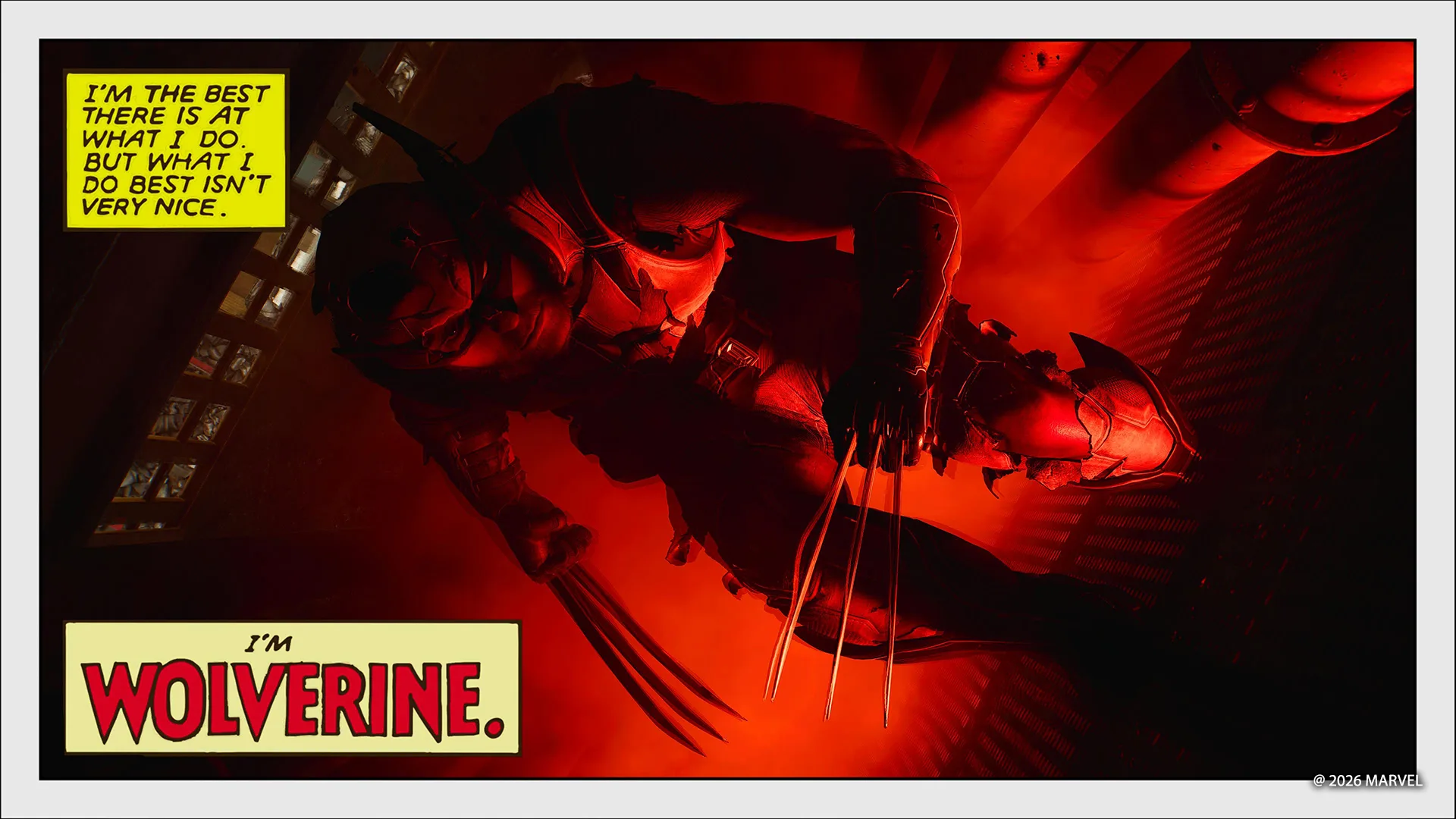
Marvel’s Wolverine Photo Mode delivers an incredibly versatile toolkit for players to craft cinematic shots with precision. From Canada’s snowy wilderness to neon-lit Shinjuku arcades, the game’s environments provide rich backdrops for creative storytelling. Check the PlayStation Blog for the original details.
The Photo Mode features up to five independent lighting rigs, each with customizable color spectrums, intensity, and light types—Sphere or Spotlights. Players can experiment with one or two lights for portraits, mimicking the key light and rim light techniques to shape mood and depth.
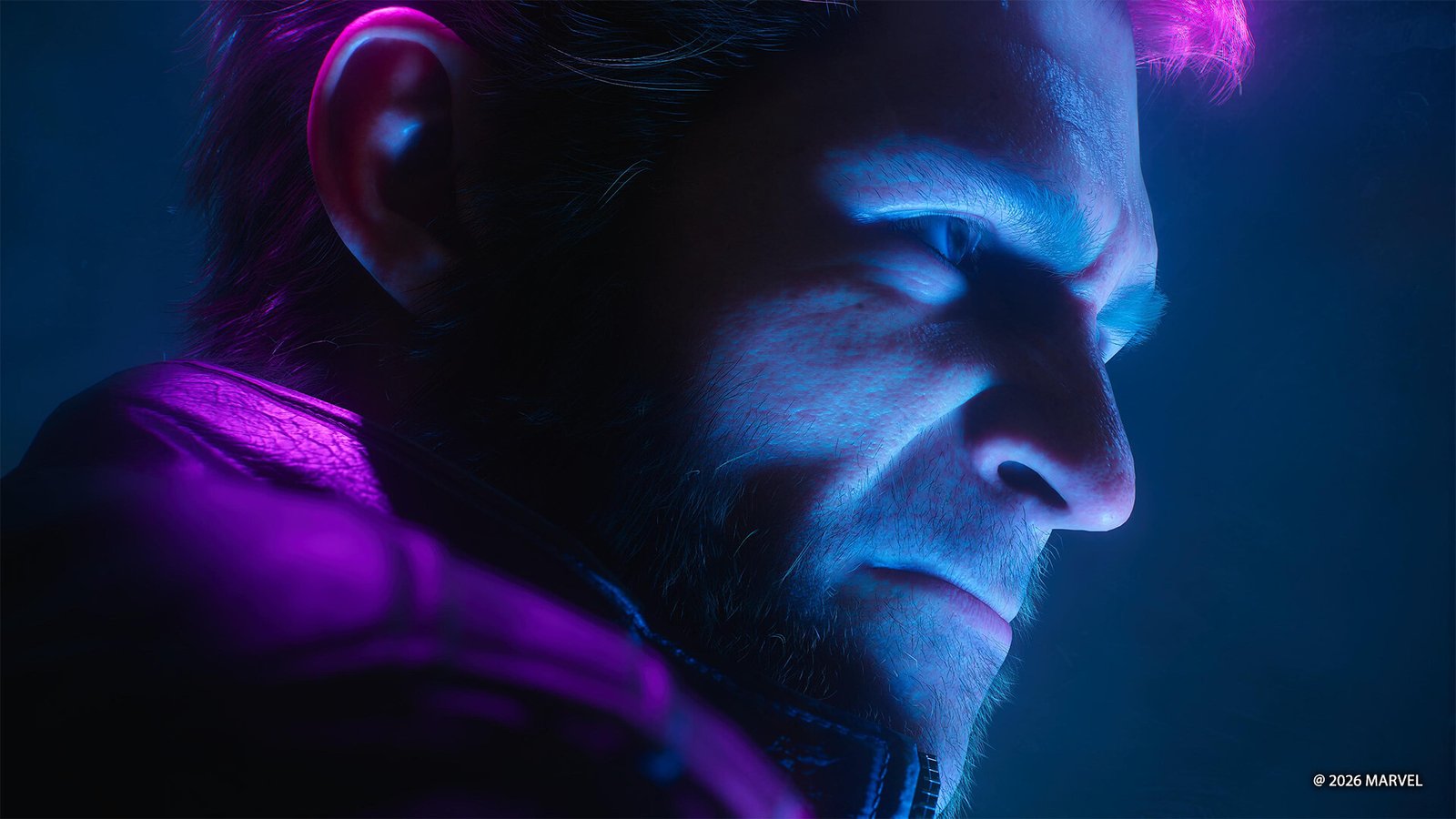
Third-party game imagery. Copyright belongs to the respective rightsholders. Used in an editorial context; reuse permission has not been independently verified.
Wolverine’s character model supports extensive posing options, including facial expressions, suit changes, and movement within a generous radius. Players can even hide characters or merge models side by side for dramatic effects, like blending Jean Grey and Logan’s heads in a sci-fi poster-style shot.
Miniature mode allows Wolverine to shrink to a tiny scale while retaining full movement capabilities, enabling unique compositions such as sitting in Jean’s palm or capturing the world’s smallest Fastball Special. This feature also integrates with the game’s graphic novel-inspired color palettes for striking visuals.
Advanced camera controls, including tilt adjustments for landscape, portrait, or Dutch angles, and the ability to pan for hidden details, help players refine their shots. The D-Pad shortcut to Photo Mode and adjustable game speed further streamline the creative process.
With its blend of photography precision and game-world integration, Wolverine Photo Mode empowers players to turn any moment into a memorable, shareable image—whether capturing a quiet character moment or a high-octane action sequence.
A practical lighting workflow starts by deciding what a photograph should communicate before activating every available light. A soft key light can establish Logan's facial shape, a restrained rim light can separate his silhouette from a dark setting, and color contrast can steer attention toward the claws or costume. The official PlayStation guide describes the available in-game controls, but these staging suggestions are editorial photography advice. Using more lights is not automatically better, especially when reflections and the background compete for attention.
Camera placement and character pose are equally important. A low viewpoint can emphasize physical presence, while moving the camera closer can reduce distracting scenery. The guide's miniature and pose features allow deliberately unrealistic compositions, so a screenshot should be understood as a creative image instead of evidence of a hidden gameplay mode. Interested players can open Sony's photo-mode tutorial for the exact control details and compare their shots with PlayStation's community galleries. The suggestions here do not imply that our editorial team created or owns any of the original gallery photographs.