
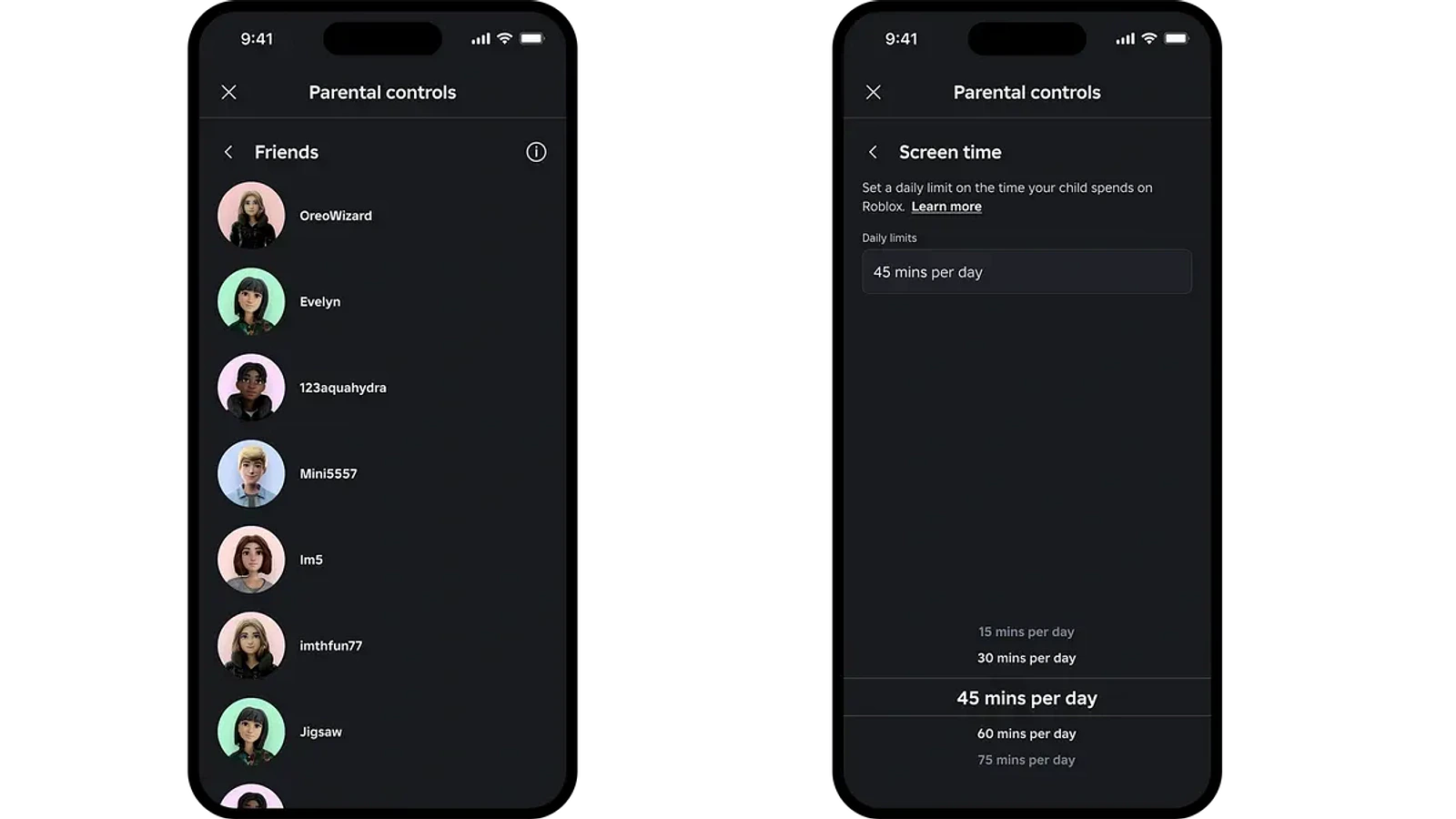
Roblox parental controls are spread across several menus, but its official dashboard brings the main decisions together: which experiences a child can join, who can communicate with them, how much time they spend playing and how money is handled. The available switches depend on the child’s age. Families should review the settings shown on the actual account instead of relying on a universal checklist. Check the Roblox Support for the original details.
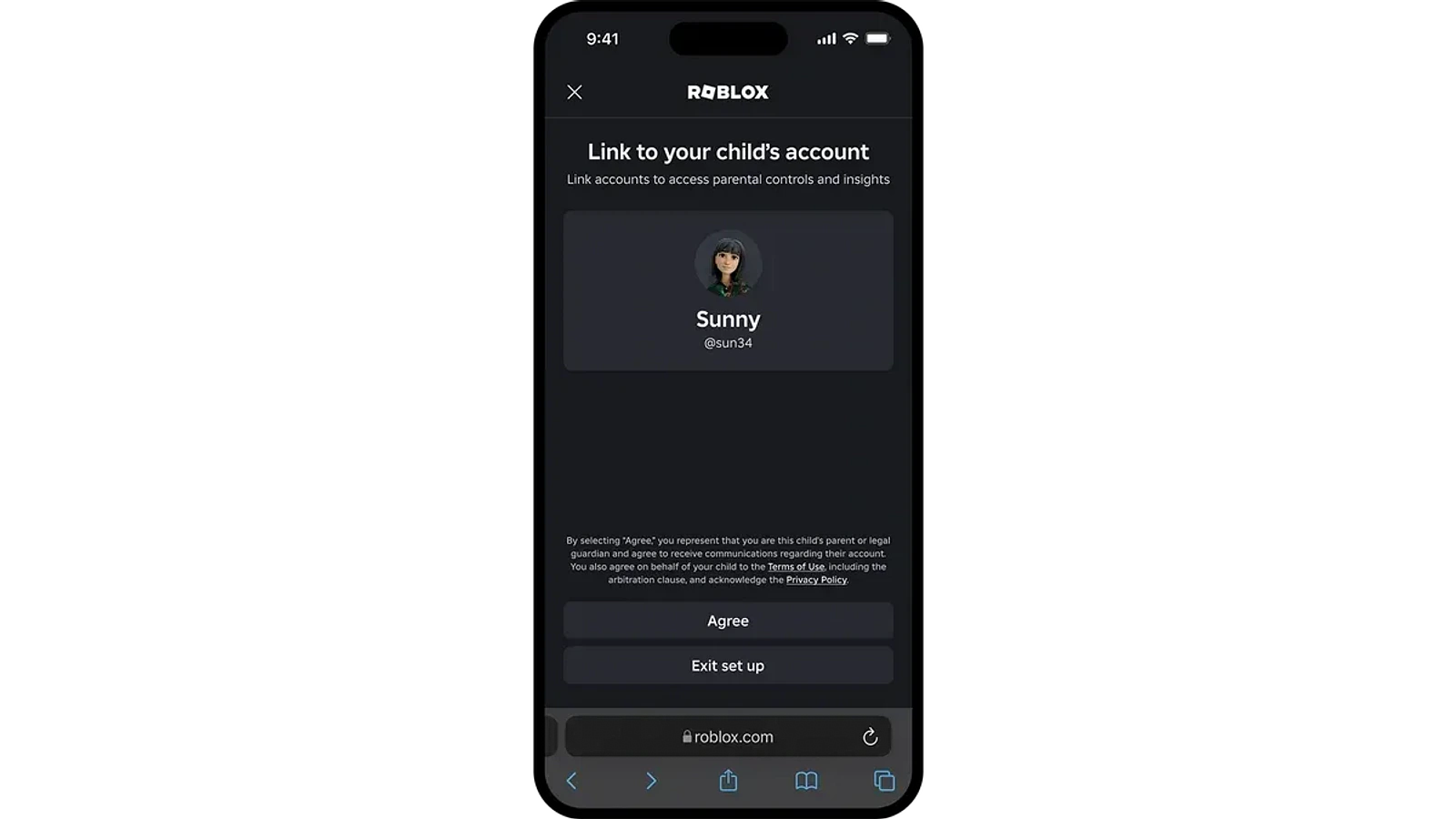
First, open Settings, then Parental controls. Desktop users can reach Settings from the gear icon; on mobile, Roblox directs users through More and the settings icon. A linked parent account lets an adult manage the child’s settings from a separate device and view pending requests, Robux balance, friends and usage information. Roblox also offers Parent mode on a child’s device for some families.
Third-party game imagery. Copyright belongs to the respective rightsholders. Used in an editorial context; reuse permission has not been independently verified.
To link accounts, Roblox asks the adult to use or create their own Roblox account and complete age verification. The child’s Parental Controls menu also offers an Add parent flow. Parent mode can approve requests without a separate adult account on eligible devices, but Roblox says it is rolling out gradually and cannot send real-time alerts such as spending notifications. Linked accounts enable those alert options.
Content restrictions are the starting point for what a child can access. Roblox provides content maturity settings and separate controls for allowed and blocked games. Adults can block an individual experience even if its rating would normally permit it. Roblox says a block applied during play takes effect the next time the child enters that game. Requests to allow a title appear for adult review.
Communication deserves a second pass. Roblox groups options for experience chat, direct chat, parties and friends, with age-check requirements for many features. Depending on the child’s age and region, parents can restrict conversations to permitted groups or turn supported communication options off. Friend-management and visibility controls also affect who can see online status, identify the current game or join a private server.
Money settings separate spending from transferring Robux. Eligible parents can set monthly purchase limits and choose spending notifications; Roblox notes gift-card redemption is not counted against the spending limit. Controls also exist for certain Robux transfers. A linked parent account is required for spending alerts, and Roblox says the parental monthly spending limit stops applying when a child turns 13, although notifications may continue.
Screen-time tools show recent usage as well as offering a daily limit in 15-minute steps for eligible accounts. Roblox says hitting that limit prevents further use for the rest of the day. Parents can also see a seven-day screen-time average and recent top games. From age 13, children manage their own screen-time limits, though linked parents can still see usage insights.
Age transitions are essential when reviewing this guide later. Roblox transfers some controls to teenagers as they get older, and from age 16 the parent-managed section becomes more limited. Account linking can still provide information, but it is not a promise that every restriction stays available indefinitely. Revisit Roblox Support’s Parental Controls Overview whenever a child’s age or account settings change.